InnoCaption Live Call Captions
- 4.3
- Rating
- 1.00M
- Installs
- Free
- Price

 Analysis by App-foxy
Phone calls are easy to take for granted until hearing clearly becomes difficult. InnoCaption Live Call Captions is built around that everyday problem, turning spoken conversation into on-screen text while a call is happening. I found the idea more practical than flashy: it is meant to help you follow a real conversation, not distract you with a collection of unrelated communication tools.
That focus makes it especially relevant for people who are deaf, hard of hearing, or living with tinnitus. It can also be useful when background noise, distance, or a speaker’s voice makes ordinary calls tiring. The app is free, developed by MEZMO Corporation, and listed for Everyone, so trying it does not require a financial commitment. My overall impression is positive, but I would treat it as a communication aid rather than a universal replacement for every calling method.
How InnoCaption fits into everyday calling
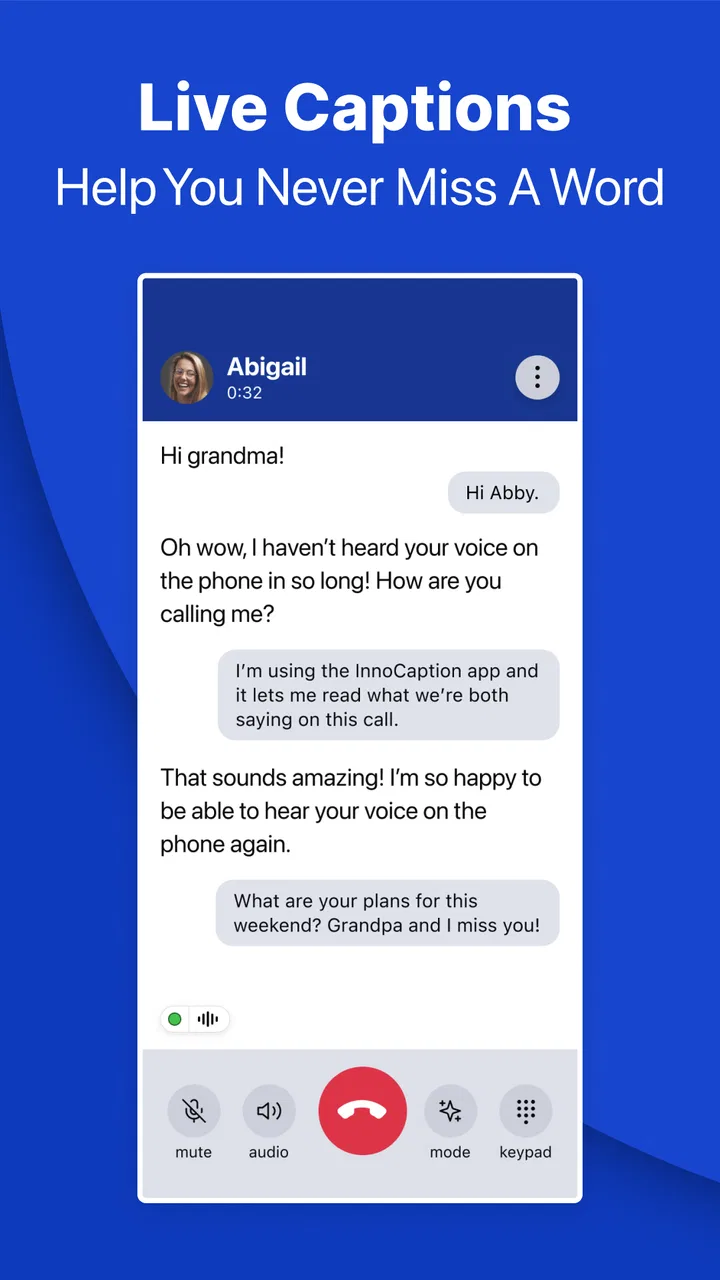
The central experience is straightforward: you use the phone call as usual while captions appear on the screen. Instead of repeatedly asking someone to repeat themselves, you can glance at the text and keep the conversation moving. That small change can make a major difference during appointments, family calls, work conversations, or any situation where missing one sentence creates confusion.
You May Also Like

 Blood Strike: 2.5 Anniversary
Blood Strike’s Loadouts Turn Every Drop Into a Tactical Gamble
A close look at Blood Strike’s custom loadouts: how fast access to signature weapons reshapes its battle royale rhythm, rewards preparation, and narrows the gap between fights.

 Pandora - Music & Podcasts
Pandora’s Music Is Easy to Start, but Harder to Recover
Pandora’s strength is its low-effort path from a seed to a station. Its weak spot is how much confidence it asks you to place in connection, setup, and quiet recovery.

 8 Ball Pool
 Is Built on Rivalries, Rematches, and Routine
A close look at the rivalries, rematches, shared routines, and unanswered safety questions that turn a quick pool match into a persistent mobile community.

 Samsung Music
’s Quiet Strength Is Playing What You Already Own
Its reach comes less from spectacle than from dependable access to a personal library. That simplicity is both the app’s strongest retention engine and its ceiling.

 AccuWeather: Weather Radar
AccuWeather Review: A Quick, Clear Forecast for Everyday Decisions
For everyday plans, the best forecast is the one you can understand quickly. AccuWeather makes rain timing, radar, and local conditions easy to act on, with a few trade-offs.

 Hill Climb Racing
Why Hill Climb Racing Still Turns Crashes Into One More Run
A tiny car, a bumpy hill and one more upgrade: Hill Climb Racing keeps resurfacing because its simple chaos makes every near-miss feel personal.
More From Our News Desk



I think the app’s strongest quality is that it addresses a specific moment of friction. Many accessibility tools are useful in general, but this one is aimed at the point where a voice conversation becomes hard to follow. The screen becomes a second channel for understanding what is being said, which can reduce the pressure to rely only on hearing.
It is worth setting expectations correctly. Captions are assistance, not a guarantee that every word will be perfect. Speech can be affected by accents, speed, interruptions, poor call conditions, people speaking over each other, or unusual names. I would still use the captions as a helpful guide and confirm important details such as addresses, appointment times, medication instructions, or account numbers.
A realistic example is a call with a medical office. I might keep the phone conversation going while reading the captioned dialogue, then repeat the appointment details back to the receptionist. That workflow is more dependable than quietly assuming I heard correctly. For a less formal situation, such as calling a relative from a busy kitchen, the text can fill in the words lost under background noise.
Who will get the most value
InnoCaption is most suitable for people who already know that voice calls are possible for them but become difficult without visual support. Someone with partial hearing may use it for selected calls, while another person may depend on captions more consistently. Tinnitus can also make concentration during a call harder, and having text available may reduce the effort needed to follow a speaker.
Family members and carers may also appreciate the added confidence it gives the person making the call independently. The benefit is not merely convenience. Being able to handle a conversation without passing the phone to someone else can preserve privacy and control.
I would be more cautious about recommending it to someone who wants a general messaging platform, video-chat suite, or social app. Its purpose is narrower. If your main communication happens through written messages, email, or video calls with built-in captions, those options may already fit your routine better.
What the current release tells me
The current version is 4.3.7, and the app has been available since June 20, 2018. That history matters because accessibility software benefits from continued refinement: users need something they can build into their routine rather than a short-lived experiment. The present release suggests an established product line, while the version number alone should not be treated as proof that every individual issue has disappeared.
MEZMO Corporation is the developer behind the app. Its store presence shows a 4.3 average from around 6,000 ratings, with roughly 1,800 written reviews and over 500,000 installs. Those figures indicate meaningful adoption and a generally favorable reception, but they do not tell me whether the app will behave equally well in every network, phone, or speaking environment.
The minimum operating-system requirement is Android 7.0. That is helpful for people using older Android phones, although compatibility is only one part of the decision. A phone that technically supports the app may still offer a less comfortable experience if its screen is small, its battery is weak, or switching between the call and captions feels awkward.
I also like that the app is free. For an accessibility tool, removing an upfront price makes it easier to test the experience before deciding whether it belongs in a daily routine. Free access does not automatically mean zero effort, however. The real test is whether the caption view is comfortable, whether calls fit your needs, and whether you can use it confidently when the conversation matters.
Changes and evolution without overpromising
When I look at a mature release such as 4.3.7, I expect the most useful progress to be in reliability, handling, and day-to-day polish rather than dramatic novelty. The app’s purpose remains clear: provide captions during calls for people who need visual help following speech. I would not assume that a newer version transforms it into a completely different communication service.
For existing users, that is actually a sensible direction. Accessibility apps are judged by consistency. A familiar call flow is often more valuable than a redesign that forces people to relearn where important controls are. If you already depend on the app, keeping the interface predictable can make stressful calls easier to manage.
New users should approach updates in the same practical way. Install the current release, make a low-pressure test call, and check whether the text is readable from your normal holding position. Try it before an important appointment rather than making the first test during the appointment itself. This is one of the most useful habits I can recommend because it reveals personal fit faster than a store description does.
I would also keep the phone’s basic setup in mind. A clear display, comfortable text size, and enough battery can matter as much as the app itself. If you often hold the phone away from your face or place it on a table, test whether you can read the captions without constantly interrupting the conversation.
How it changes the experience for returning users
For someone who has already adapted to captioned calls, the main advantage is continuity. You can keep a familiar method for conversations that would otherwise require extra preparation. That may be particularly valuable for recurring calls with a doctor, employer, school, bank, or family member.
There is also a subtle psychological benefit. When I know text support is available, I am less likely to avoid making a call altogether. Avoidance can create its own problems: missed appointments, delayed questions, or dependence on another person to speak on my behalf. Caption support does not remove every barrier, but it can make initiating a call feel more manageable.
At the same time, returning users should not stop checking important information just because the captions look clear. A caption can be readable and still misunderstand a word. I would use a repeat-back routine for critical details: read the caption, say the information aloud or restate it, and ask the other person to confirm. This is especially useful when names and numbers are involved.
Another practical tip is to tell the person on the other end that you are using captions if the conversation becomes confusing. Speaking one at a time and pausing between thoughts gives the captioning process a better chance to keep up. That is not a special setting or hidden trick; it is a simple change in call behavior that can improve the usefulness of any live transcription system.
Where the app may feel limited
The most obvious trade-off is that live captions add another thing to watch. Some people will find the visual text reassuring, while others may feel divided between listening, reading, and responding. During an emotional or fast-moving conversation, that extra mental load can be tiring.
Captions can also be less helpful when several people speak at once. A normal phone call already carries only one audio channel, and overlapping voices make any transcription harder to follow. If the call involves a group, a video meeting platform with a dedicated caption view may be a better choice, provided that platform suits the conversation and accessibility needs.
InnoCaption is not automatically the best alternative to text messaging either. If the subject is simple and does not require immediate back-and-forth, a written message may be clearer because both people can review it before replying. I would choose the app when the natural flow of a voice call matters, not merely because captions are available.
There is also a privacy and concentration consideration in any captioned call. Text appearing on a screen can be seen by people nearby, and reading it may expose parts of a conversation that would otherwise remain audible only to the caller. I would use headphones, a private room, or a careful screen position when the subject is sensitive. The app can support independence, but the surrounding environment still matters.
People with very specific requirements should test the app against those requirements rather than assuming its general accessibility focus covers everything. If you need a particular language, specialized terminology, a transcript you can edit later, or a meeting-oriented workflow, look closely at whether the app matches that task. A live call caption tool and a full transcription service are not interchangeable.
How it compares with ordinary alternatives
Compared with a standard phone call, the difference is immediate: the conversation gains a visual reference. That can reduce repetition and make difficult calls less exhausting. Compared with texting, the app preserves the speed and warmth of speaking, which is useful when tone and quick responses matter.
Compared with video-call services that include captions, InnoCaption is more focused on the telephone conversation itself. Video platforms may be better for group discussions, shared screens, or meetings where several participants need to see the same caption stream. A dedicated phone-captioning app can be the simpler choice when the goal is one-to-one calling without adding a meeting environment.
Compared with asking a family member to help, the app offers more independence and privacy. That does not mean personal assistance is never better. In a complicated conversation involving legal, financial, or medical consequences, a trusted person or professional communication support may still be appropriate. The app should reduce unnecessary dependence, not pressure anyone to manage every situation alone.
Compared with built-in accessibility features on a phone, the deciding factor is how well the specific call workflow works for you. System-level tools can be convenient because they are already part of the device, while a dedicated app may be more directly designed around captioned calls. I would test both rather than assuming the most visible option is the most comfortable.
A practical setup and testing routine
Before relying on the app, I would choose three test calls. First, call someone patient and ask them to speak normally. Second, try a call in the environment where you usually struggle, such as a noisy room. Third, practice a short exchange involving a name, an address, or a number. These tests reveal different weaknesses and help you learn when to verify what you read.
During the test, notice more than accuracy. Check whether the text is large enough, whether you can keep your place while listening, and whether you can respond without losing the conversation. If reading makes you miss the speaker’s tone or timing, experiment with shorter glances instead of trying to read every word continuously.
For scheduled calls, prepare the key questions in writing before dialing. That lets you use the captions to confirm answers rather than trying to remember everything while listening. After the call, write down the agreed details. This workflow is especially useful for appointments and service calls because it separates understanding the conversation from remembering its outcome.
I would also tell frequent contacts how to make the call easier: speak one person at a time, avoid covering the microphone, repeat unfamiliar names, and pause after important information. These habits benefit the conversation regardless of which captioning tool is being used.
What to watch as you decide
The most important question is not whether live captions sound useful in theory. It is whether they make your own calls more independent and less tiring. Try the app during ordinary conversations, not only a carefully controlled demonstration. Your result will depend on your hearing needs, reading comfort, phone, connection, and the people you call.
I would also watch how well the current experience fits your changing needs. Someone may begin using captions only for appointments and later find them useful for family calls, work, or noisy public places. Another person may discover that text-heavy calls are more tiring than expected and prefer messaging or video communication instead. Both outcomes are reasonable.
The app’s established presence, free price, Everyone age rating, and support for Android 7.0 make it approachable for a broad range of users. Its 4.3.7 release is a sensible starting point for evaluating the current experience, but I would judge it through a personal test rather than through version numbers or popularity alone.
My recommendation is clear for people who want visual support during ordinary phone calls: give InnoCaption Live Call Captions a careful trial, especially if hearing difficulty or tinnitus makes voice conversations stressful. The best result comes from treating captions as a confidence-building second channel, not as an infallible transcript. If your needs center on group meetings, written communication, or saved professional transcripts, another option may suit you better. For one-to-one calls where following the spoken conversation is the main challenge, this focused approach can be genuinely helpful.
FAQs for InnoCaption Live Call Captions
01What is InnoCaption and how does it work?
InnoCaption is an app designed to provide real-time call captioning for individuals who are deaf or hard of hearing. It works by using a combination of speech recognition technology and live stenographers to transcribe phone conversations, ensuring users can read what the other person is saying during a call.
02Is InnoCaption available on both Android and iOS?
Yes, InnoCaption is available for both Android and iOS platforms. Users can download the app from Google Play Store or Apple App Store, ensuring accessibility to a wider audience regardless of their device preference. This cross-platform availability makes it convenient for more users to benefit from its services.
03Is there a cost associated with using InnoCaption?
InnoCaption is free for eligible users in the United States, as it is funded by the Federal Communications Commission (FCC). However, users must meet certain eligibility criteria related to hearing loss to use the service at no cost. Always check the latest terms and conditions on the official website or app store page.
04How accurate are the captions provided by InnoCaption?
InnoCaption offers highly accurate captions by combining automated speech recognition with human stenographers. While this approach significantly enhances accuracy, the quality of captions can still depend on factors like call clarity and background noise. Users generally report high satisfaction with the app's performance.
05What are the privacy features of InnoCaption?
InnoCaption prioritizes user privacy and complies with FCC regulations to protect user information. The app does not record or store any phone conversations, ensuring that users' data remains confidential. It's important for users to review the privacy policy for a comprehensive understanding of how their data is handled.
Pros
- Real-time captions improve communication.
- User-friendly interface for easy navigation.
- Supports both Android and iOS platforms.
- Offers customizable caption settings.
- Reliable customer support available.
Cons
- Requires stable internet for best performance.
- Limited language options for captions.
- High battery usage during long calls.
- Occasional delays in captioning.
- Subscription may be expensive for some.

InnoCaption Live Call Captions
Gallery